
AI SOC Platforms: Capabilities, Architecture, and Use Cases
Read More


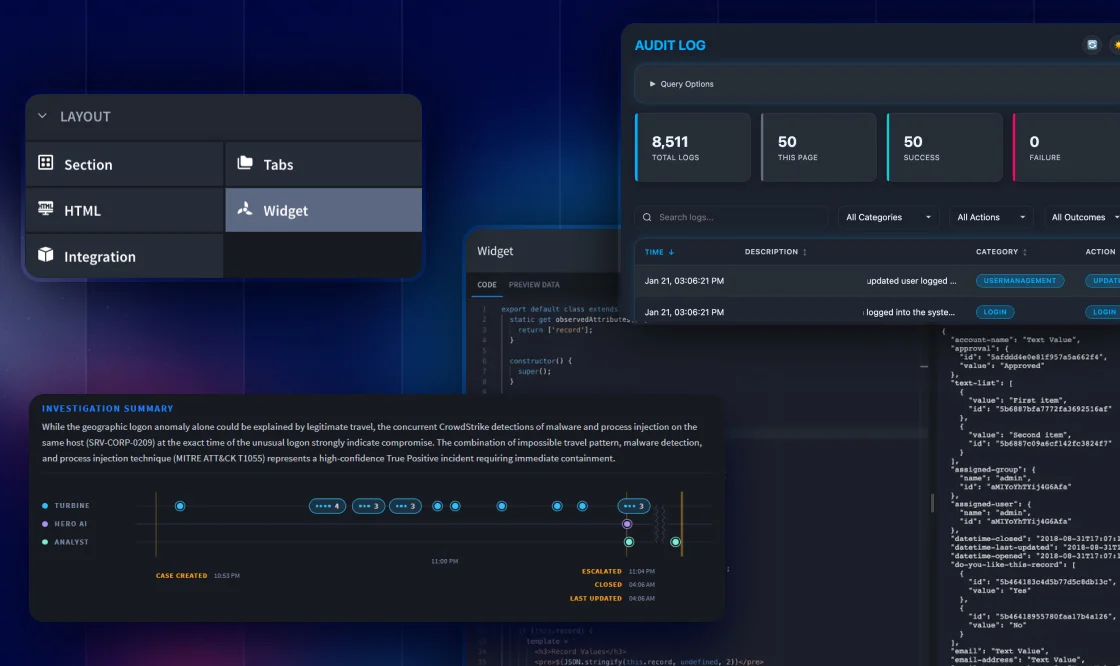
Security teams rarely run short on data. They run short on the right view of it. The dashboard that almost shows what a shift lead needs. The case layout that makes an analyst open four tabs to reconstruct a single alert. Out-of-the-box screens get you close, and then they stop.
Turbine Widgets cover that last mile. A widget is a small, custom interface component you build and drop into Swimlane Turbine, on an application record or a dashboard, so the platform shows exactly what your security operations center (SOC) needs, the way it needs it. This guide walks through what widgets are, where they run, a few examples worth borrowing, and the three ways to build one, from a single line of code to a plain-English prompt.
Short on time? The video below covers the same ground in a few minutes.
A Turbine Widget is a custom web component that renders inside Swimlane Turbine and can read, display, and update your data. Widgets are built with Lit, a lightweight web-components library, and they extend a base class called SwimlaneElement. That base class is the bridge to the platform: it passes in the current record or report data, exposes session context, and lets the widget call any Turbine API without you handling tokens or authentication. If you have worked with HTML, CSS, and JavaScript, the model will feel familiar.
The payoff is bigger than it sounds. Instead of accepting the screens Turbine ships with, you can extend the interface itself and put any view you can describe in front of your analysts.
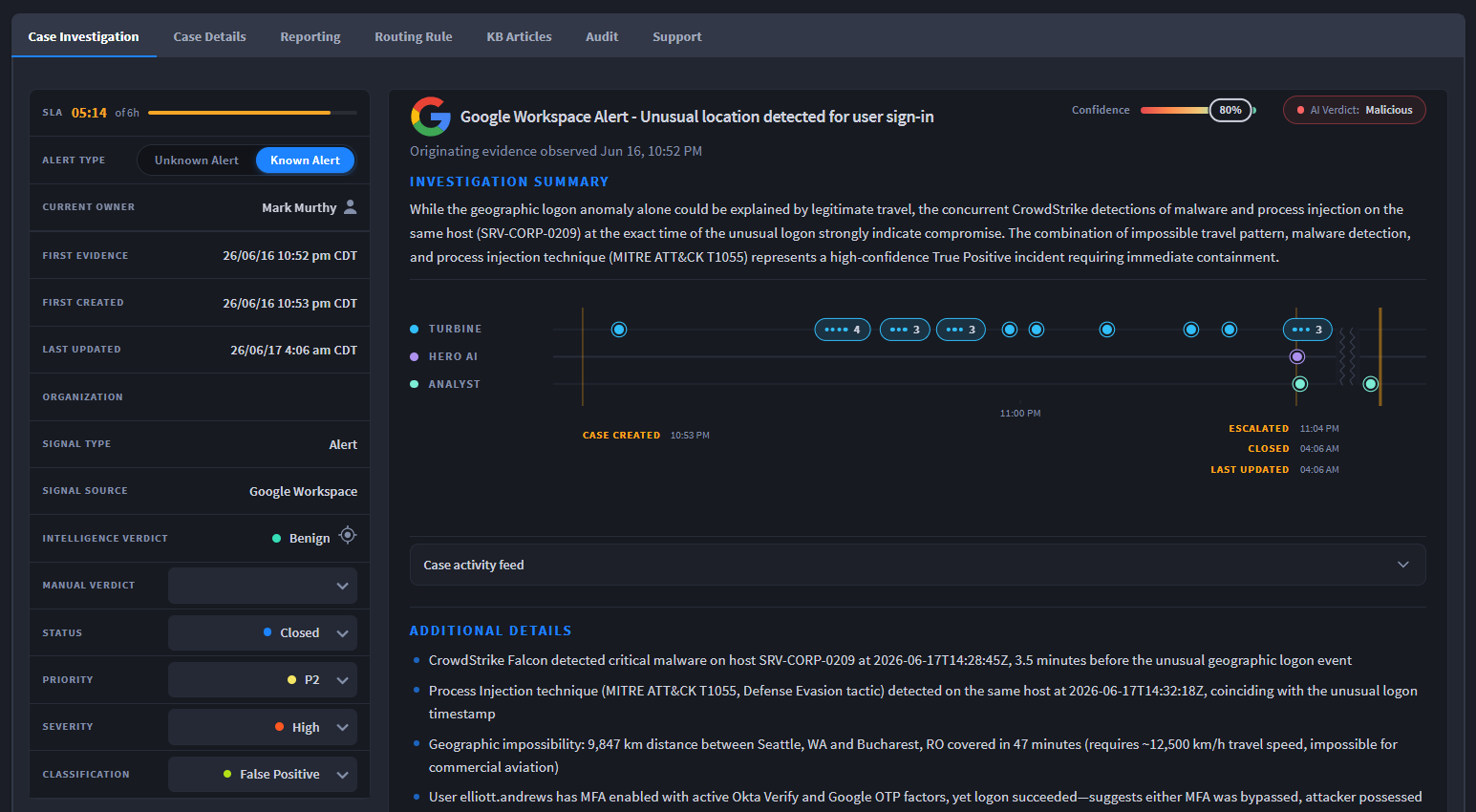
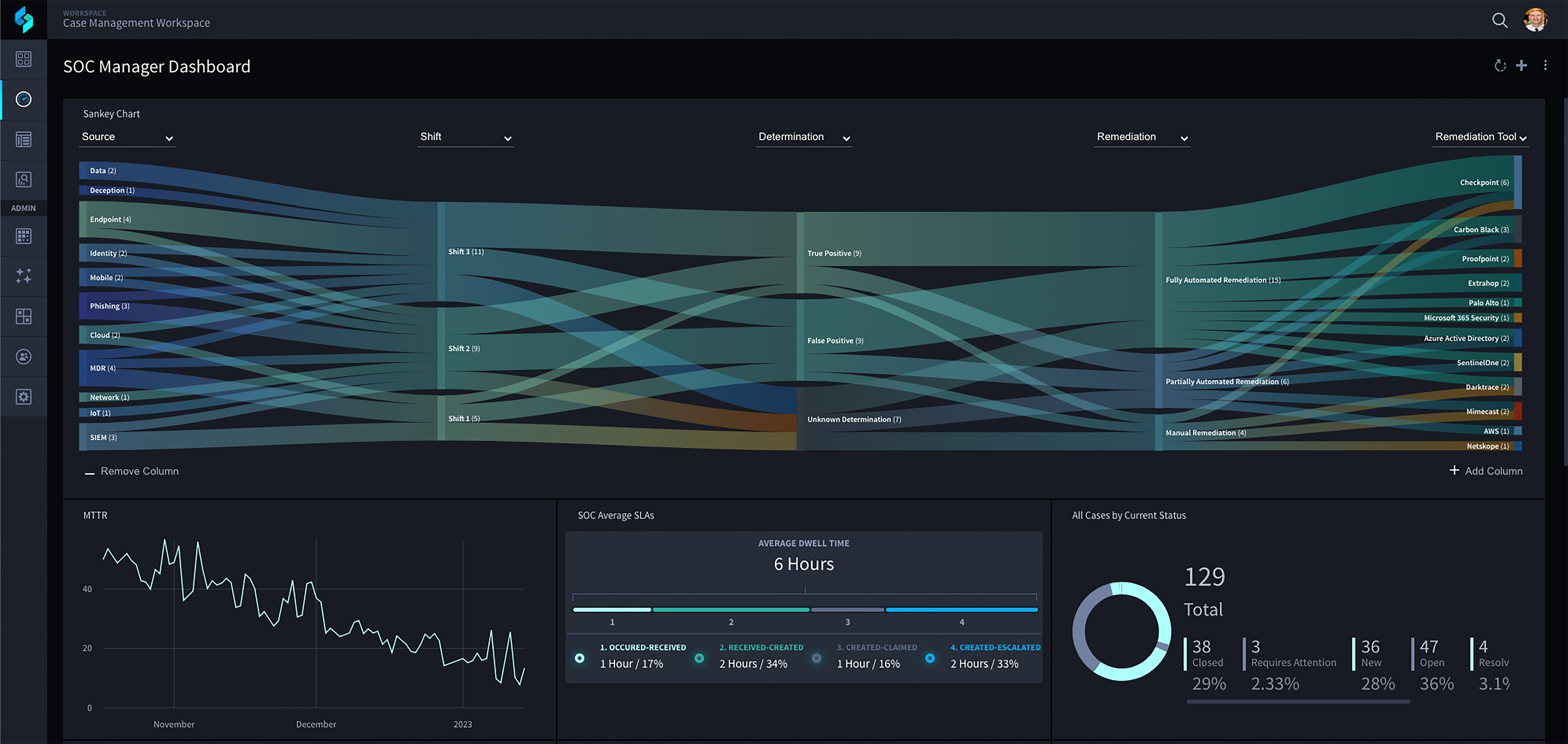
Widgets render inside Turbine itself. Here one sits on a record layout.
Widgets render in two places, and the location decides what data they can see.
Same framework, two scopes: the data on one record, or data across many.
Record Widgets read one record. Report Widgets read across many.
The catalog ships more than a hundred widgets, each with full source, so the quickest way to learn the patterns is to start from one. Three we reach for often:
The ROI Calculator Widget is a report widget that turns playbook runs, action executions, and Hero AI usage into time and cost savings. It answers the question every SOC leader eventually fields from the business: what is this returning?
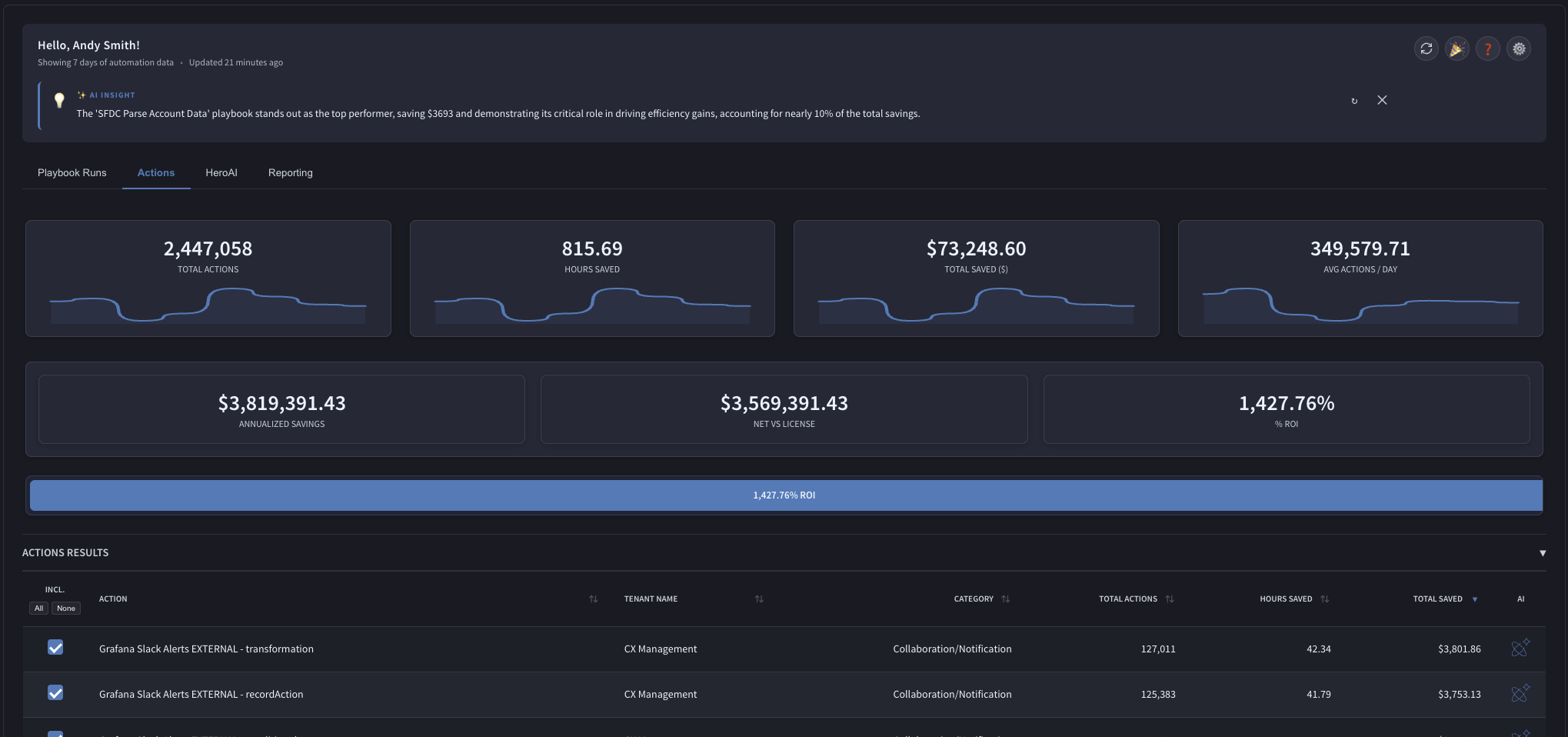
ROI Calculator: time and cost saved, by playbook, action, and Hero AI prompt.
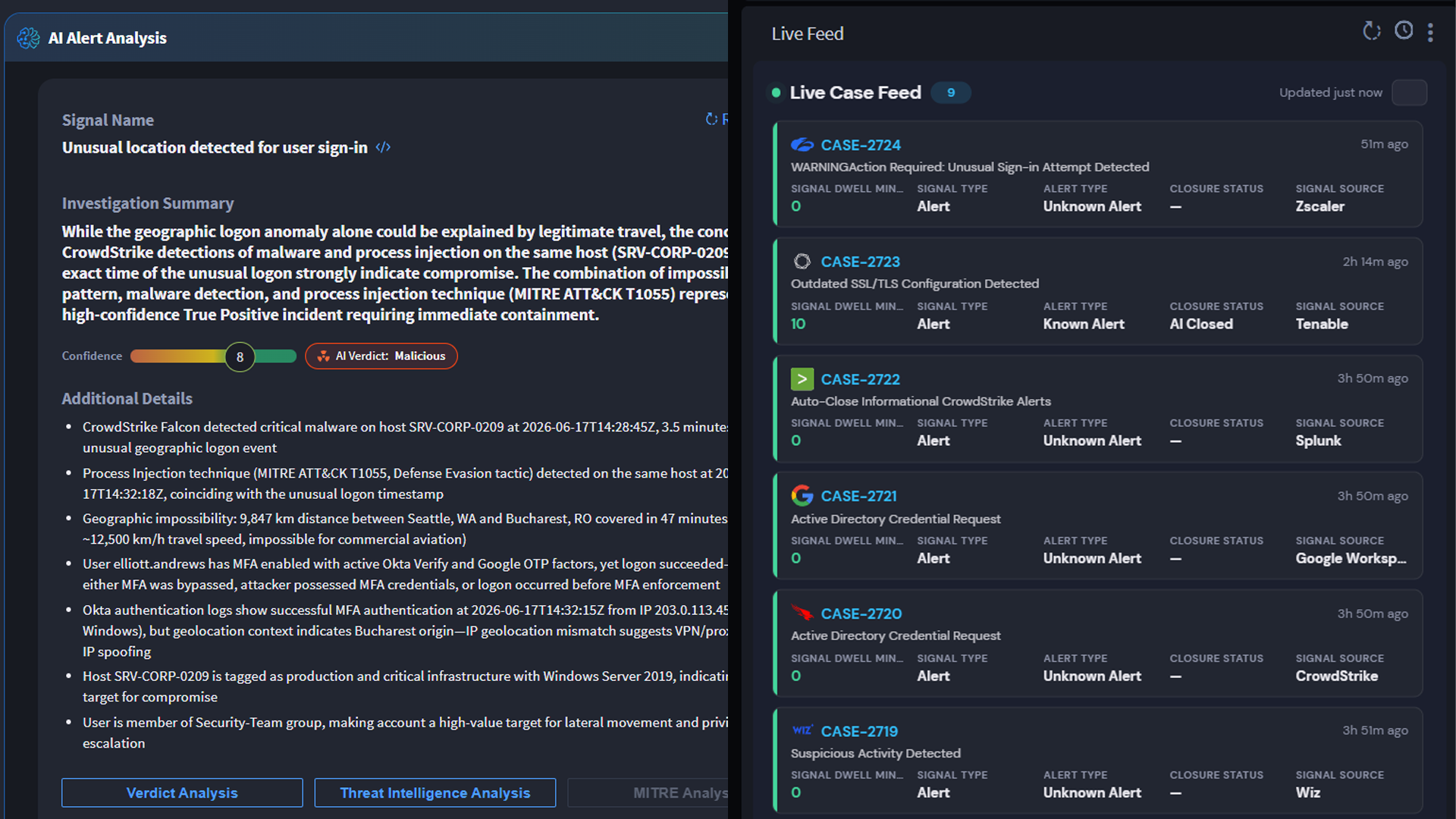
The Case Summary Widget operates at the record level. It gathers an alert in a single pane instead of half a dozen tabs.
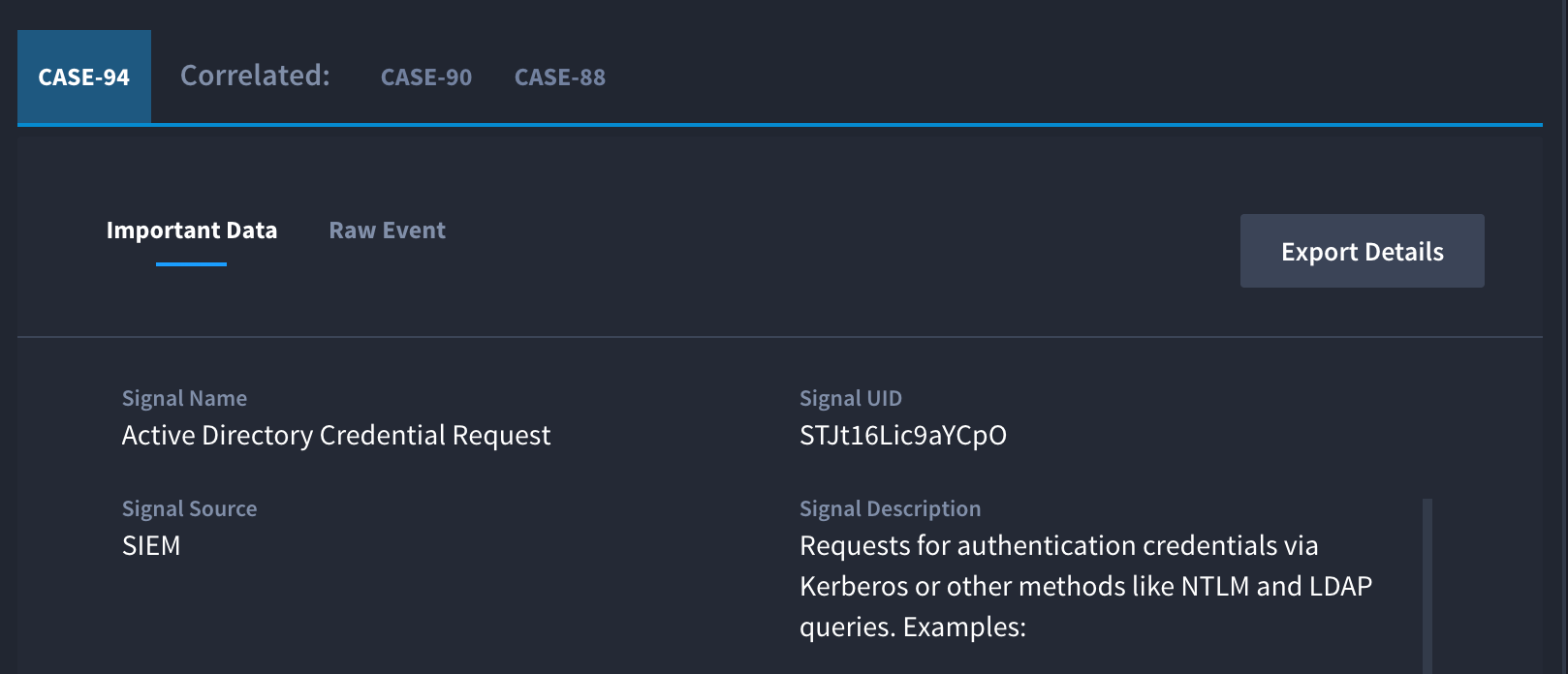
Case Summary: an alert and everything related to it in one view.
This report widget maps alert volume onto the MITRE ATT&CK matrix. As you can see in the image below, color shows where detections cluster and, more usefully, where the gaps sit. It tends to earn a permanent spot on the SOC wall display.
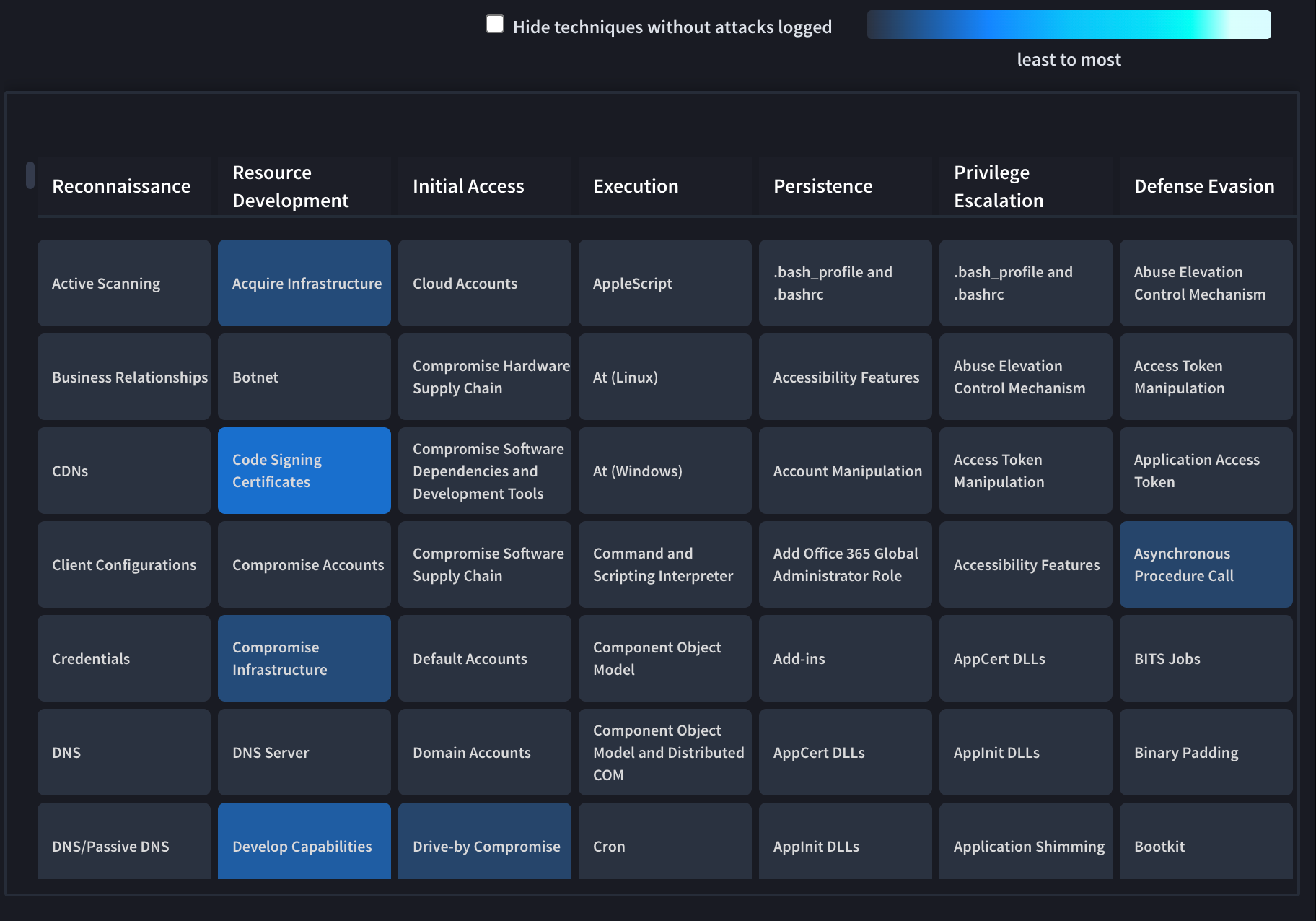
MITRE ATT&CK Heatmap: where detections cluster, and where the gaps are
How you build a widget comes down to how much code you want to touch. The three paths share the same editor and the same component library, swim-ui, which keeps whatever you build looking native to Turbine.
1. Import from the Content Delivery Network. Many widgets are hosted on the Swimlane CDN, ready to use. Paste a single import line into the widget editor, save, and it renders. Pin a version when you want stability. No framework knowledge required.
2. Build from scratch. Open the widget editor and write the Lit code yourself: extend SwimlaneElement, pull in swim-ui, and define your render method. This path gives you full control and is the best way to learn the framework. The docs site at swimlane.github.io/custom-Widgets has the API reference, the component library, and source for the entire catalog. swimlane.github.io/custom-Widgets
3. Build with Hero AI. Open the widget editor and choose “build with Hero AI”. Describe what you want in plain language, and Hero enters Widget Building Mode, generates the widget code in the code tab, and shows a live preview. Review it, click apply, and it is on the layout. You can keep refining in the same session, and Hero asks clarifying questions when it needs more detail. Hero AI has to be enabled in your tenant.
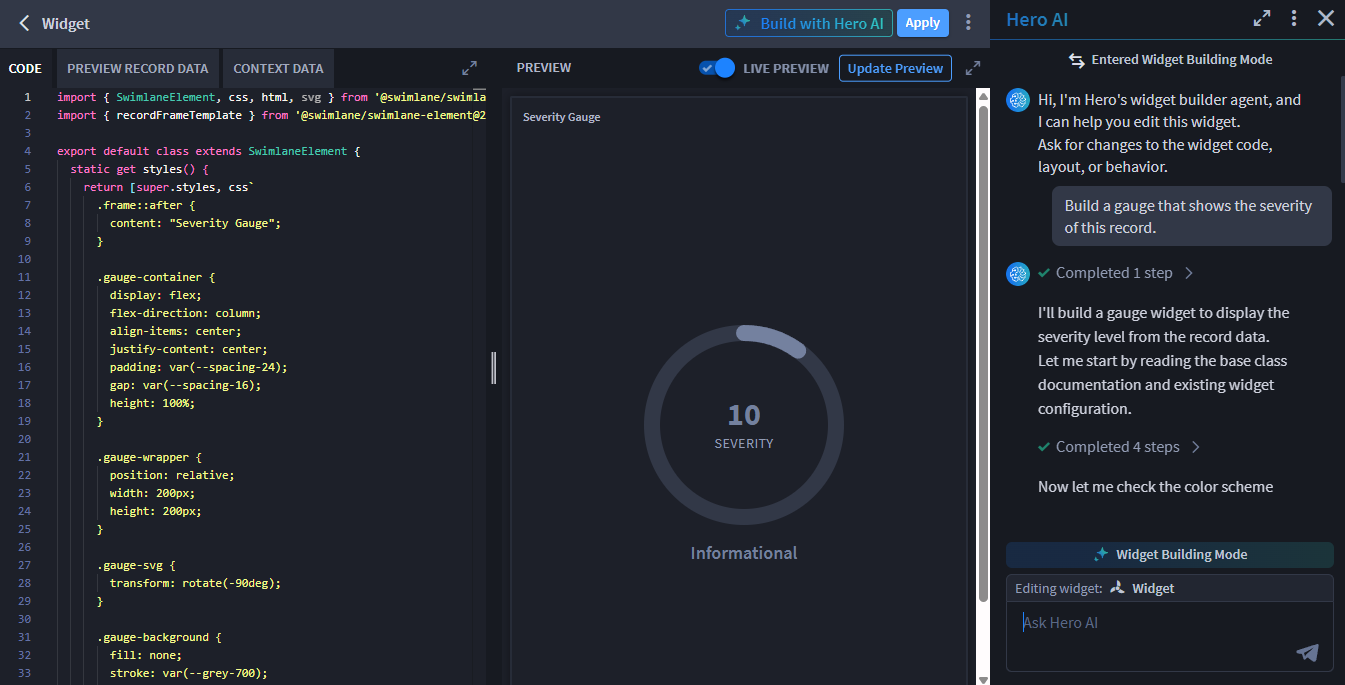
Build with Hero AI: describe the Widget, preview the generated code, and click Apply.
Swimlane Turbine transforms your security stack with agentic execution and low-code playbooks. Standardize every workflow to eliminate manual grinding and move at light speed.
A custom web component that runs inside Swimlane Turbine and can read, display, and update your data. Widgets extend the platform UI on record layouts and dashboards using the Lit framework and the Swimlane Element base class.
In two places. Record widgets run on a record layout and work with a single record’s fields. Report widgets run on a dashboard and read aggregated data from a report query.
Not necessarily. You can import a ready-made widget from the CDN with a single line, or describe what you want to Hero AI and have it generate the code. Coding from scratch is optional and gives you the most control.
Yes. In the widget editor, choose build with Hero AI, describe the widget in plain language, and Hero generates the code for you to preview and apply. Hero AI must be enabled in your tenant.
The catalog includes more than a hundred widgets, each published with full source code you can study and adapt for your environment.
Pick a view your team keeps wishing for and build it, whether that means importing one from the CDN, coding it from scratch, or describing it to Hero AI. Then share it: post your widget on LinkedIn and tag Swimlane. If it is as sharp as we expect, we will send something your way.

 English English
  Français
 Deutsch
 日本語
日本語
 한국어
한국어
 Português
 Español